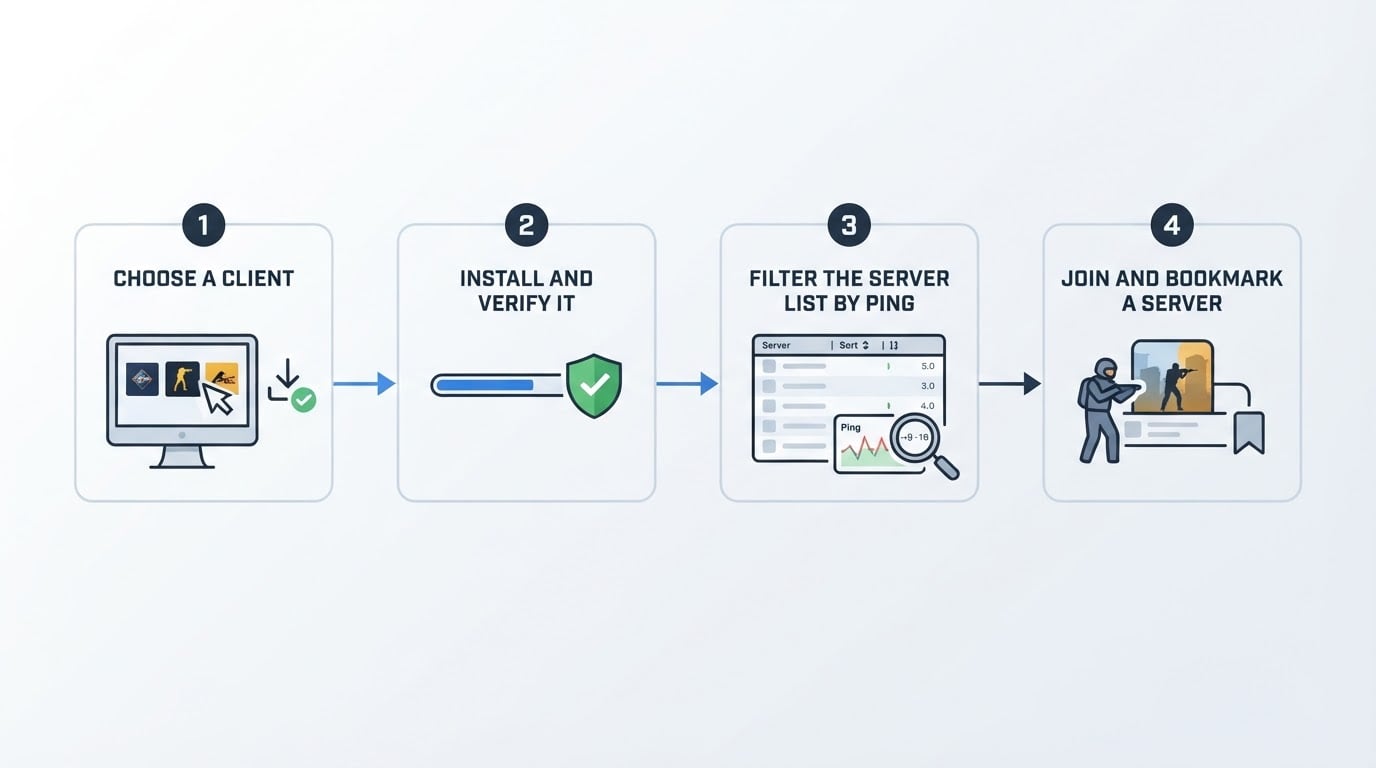
What a finished status check looks like
When the checks below are done, you can answer three questions without guessing:
- Is the outage on the platform backend, or only on the server you are trying to join?
- Can your client reach that server at its IP address and port for longer than a few seconds?
- Is the server visible in the list players actually open, and, if you run it, is its listing row still active?
The order matters. Each check removes one layer of doubt, so you never reinstall a working client to fix a server that is simply full.
Step 1: Check the platform backend before anything local
Open an official status source before you touch your own setup.
Start at the platform level. Check the service health page or the official announcements for the game platform your client depends on. If the backend is degraded, every server you try looks dead at the same moment, and nothing on your machine will change that.
If the platform reports normal service, the fault is local or specific: your client, your connection, or the single server you are trying to join. Note which one and move to the next step without reinstalling anything yet.
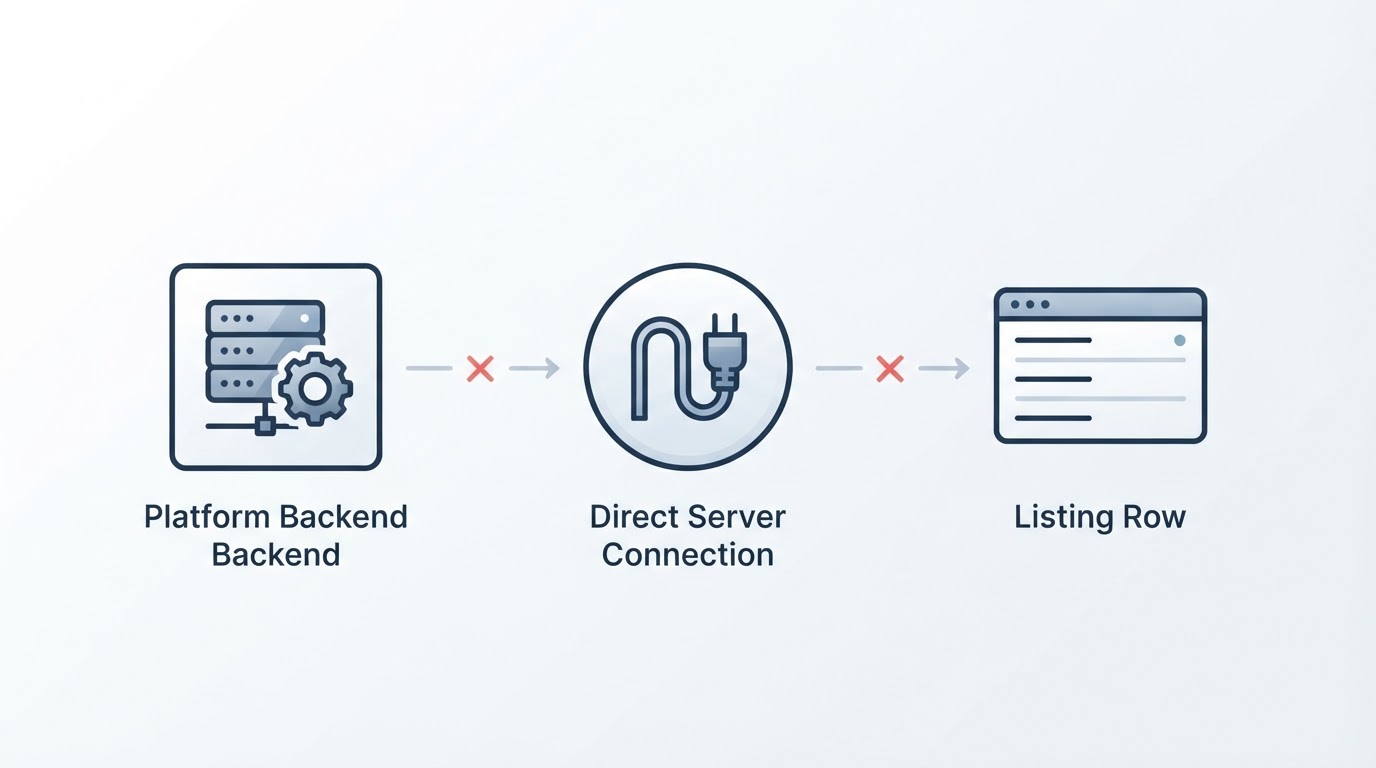
Done when: you can name the failing layer, whether that is the platform backend, your own connection, or one specific server.
Step 2: Test the exact server, not the whole game
Connect straight to the address instead of through the server browser.
Open your client's console and type connect followed by the server address and port, for example connect 203.0.113.10:27015. A direct connect bypasses the browser, the filters, and the master server lookup, so it answers one question only: does this server respond to you right now?
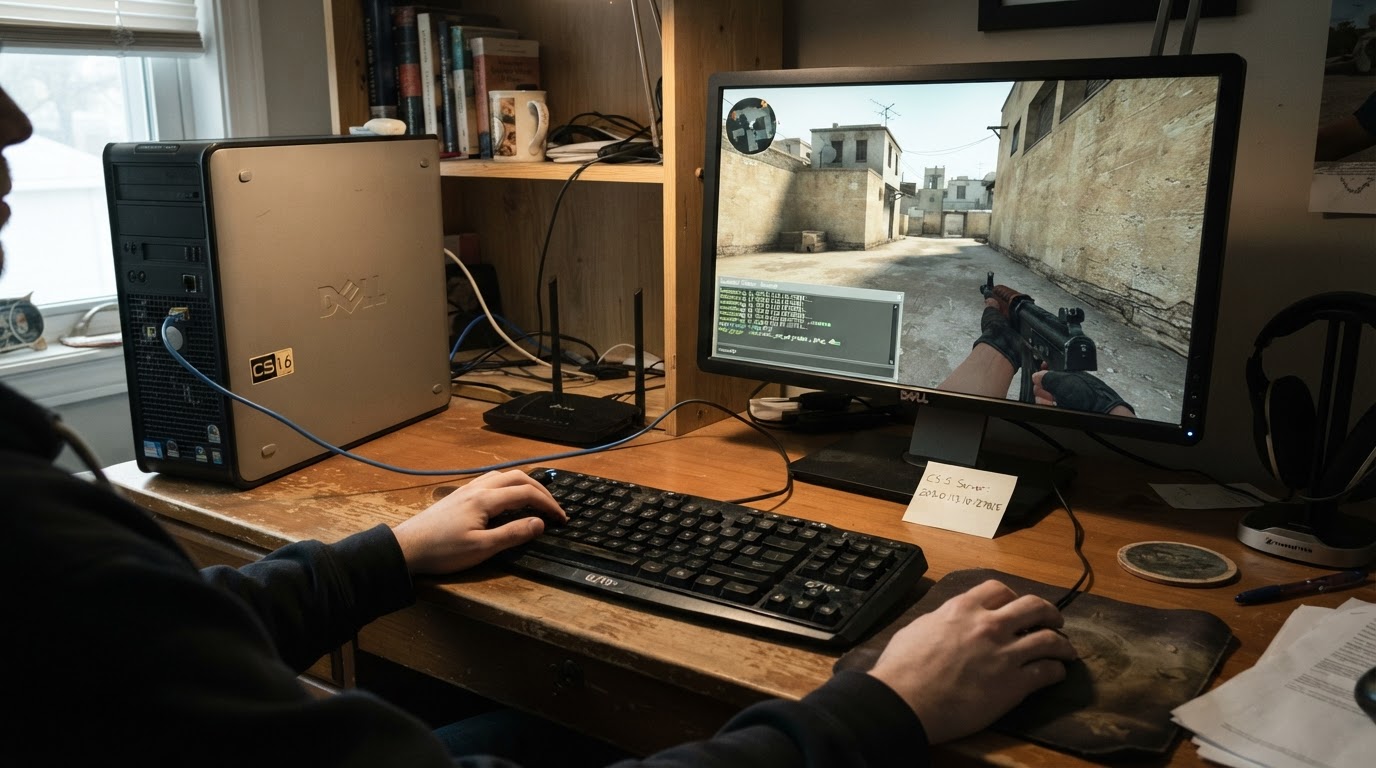
Once you are in, run status in the console. A healthy server answers with its hostname, map, and player list. Then keep net_graph 1 on for a minute and watch the ping: a connection that holds steady belongs to a live server, even when the browser fails to show it.
If the connection times out, the cause is usually one of four things: the server is offline, the port is wrong, a firewall is blocking the port, or your route to it is broken. Repeat the test from a second network, because a server that answers from another connection is up and the problem sits on your side of the route.
Done when: the console returns server data and your ping stays stable for a full minute.
Step 3: Rebuild an empty or stale server list
Clear every filter and refresh the list before you conclude that servers are down.
A single leftover filter hides a healthy server. In the server browser, switch to the Internet tab and reset the game type, the map, the has-players and not-full toggles, and the ping ceiling. Then refresh and let the query finish before you judge the result.
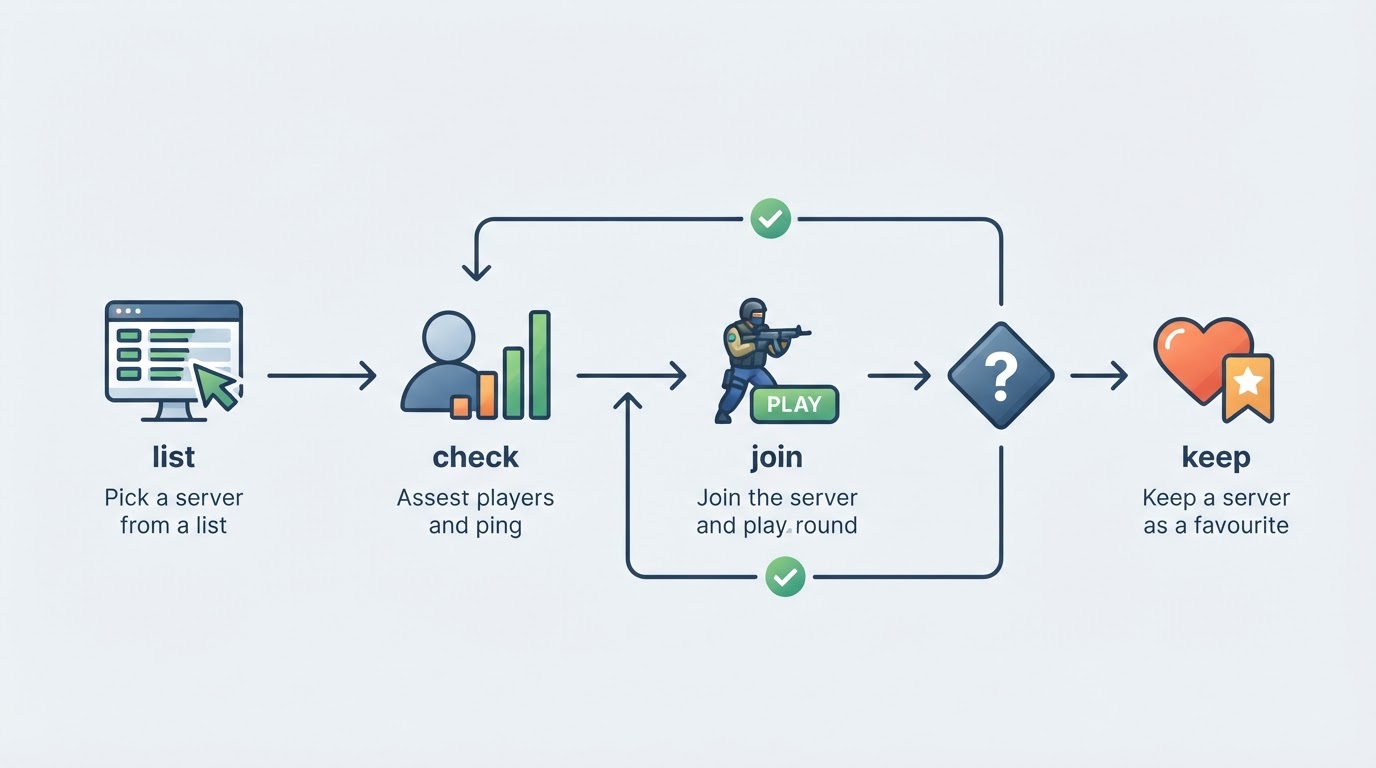
Next, make the server independent of the browser: open it once and add the exact address to Favorites. A favorites list survives a refresh that returns nothing, so you can always reconnect to a server you already know works.
If the Internet tab stays empty while a direct connect works, the master server lookup your client depends on is the usual suspect. Keep using Favorites and direct connect until you update or reinstall the client, because a stale client build can lose access to the public list while the game itself still runs perfectly.
Done when: the server appears in Favorites after a client restart and connects without retyping the address.
Step 4: Verify the listing row, not just the server
Check the row that players see, including its expiry date.
For a server owner, online and findable are two different problems. The listing row is what players browse, so verify the row itself: server name, the exact IP address and port, the promotion tier, and the date the entry expires.
Compare that row against the server you actually run. A wrong address sends players to another machine, and an expired entry can disappear even though the server itself is still healthy. If your promotion provider shows a renewal action next to the expiry date, that is the control you use before the row drops off.
DownloadCS16.RO is one pairing of the two halves of this workflow: a free CS 1.6 client portal aimed at Romanian-speaking players and server owners that promotes the top-boost.ro server listing. Treat it as one example rather than the only route, because the checks on this page work with any client and any promotion service.
Done when: the row shows the exact IP address and port you run, the tier you bought, and an expiry date in the future.
Step 5: Repeat the three checks after every change
Re-run the same checks whenever a client, router, or server changes.
Updates and migrations break connections quietly. A system update, a router reboot, a hosting move, or a fresh client install can each turn a working setup into one that looks like an outage. Because the checks are ordered, you can restart from the top and stop at the first failing layer instead of guessing.
Keep the details you need in one note: the server address with its port, the client you tested with, the promotion tier, and the expiry date. The next time the server looks dead, you can separate a real outage from a listing problem in a couple of minutes.
Done when: you can restore a dead-looking server from your own notes without asking anyone.
Pitfalls that look like an outage
- "Everything is up, but I still cannot join." A healthy platform can sit in front of one unreachable server. Step 1 isolates the platform, and Step 2 isolates the individual server.
- "The server is online, but nobody joins." That is a visibility problem, not a status problem. Check the browser filters in Step 3, then the listing row and its expiry in Step 4.
- "The list is empty, so the game must be down." An empty browser usually means a stale filter or a failed master server lookup. A direct connect tells you whether the server itself answers.
- "The server is full, so it must be down." A full server refuses new connections while its status stays perfectly healthy. Try again later instead of troubleshooting your client.
Checklist recap
- Platform backend checked before anything local.
- Direct connect tested with the server IP and port.
- Console
statusreturned the map and player list. - Ping held steady for at least a minute.
- The server is saved in Favorites.
- The listing row shows the right IP and port with a future expiry date.
- The same checks repeated after the last client or server change.